
Seelen UI
Seelen UI is an open-source Rust/Tauri desktop environment for Windows that replaces the taskbar, dock, launcher, and window manager.
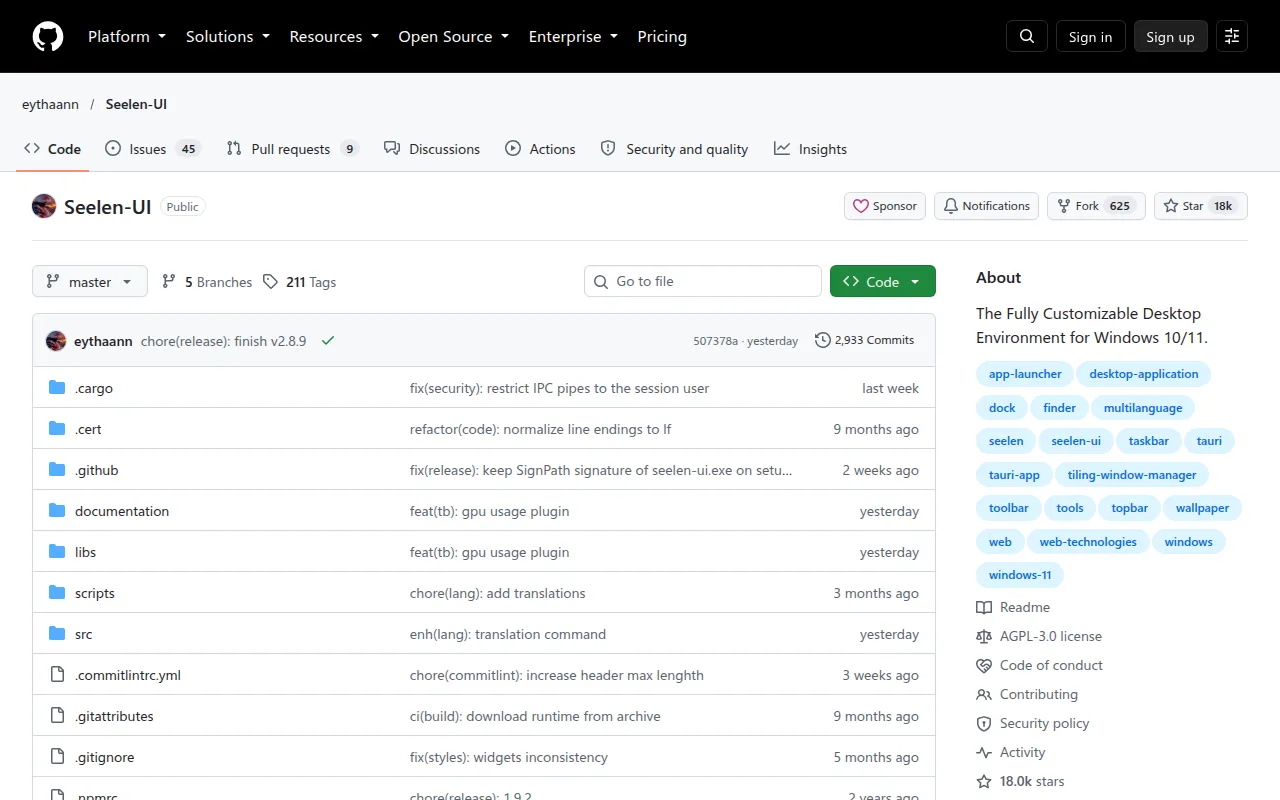
Seelen UI is a desktop environment replacement for Windows 10 and 11. It's built for users who want more control over how their desktop looks and behaves than Windows allows out of the box, including power users, tiling window manager fans coming from Linux or macOS, and anyone who wants to theme their entire shell instead of just their wallpaper.
Rather than a theme pack or a single widget, it swaps out the taskbar, dock, app launcher, Alt+Tab switcher, system flyouts, and virtual desktop implementation with its own themeable versions. A CSS/JSON theming engine and a widget SDK (Svelte + TypeScript with IPC access to system state) let you restyle or extend nearly every surface of the shell.
Key features
- Tiling window manager: automatic layouts (BSP, columns, stacks) with gap control, keyboard navigation, floating mode, and per-app rules for layout and workspace behavior.
- Custom toolbar and dock: a widget-powered taskbar and a macOS-style dock with launch, focus, and badge support, both fully themeable.
- Virtual desktops: a custom implementation with animated transitions, per-workspace wallpapers, named workspaces, and workspace rules to pin apps on launch.
- Theming engine: scoped CSS/JSON styling per widget, dark/light mode support, community theme sharing, and dynamic accent color extracted from the current wallpaper.
- App launcher: a Rofi-inspired, keyboard-driven launcher with fuzzy search across apps, files, and commands.
- Media module: universal media controls (play, pause, skip, scrub) that work across most players, accessible from the toolbar or as a widget.
- Desktop widgets: clocks, system monitors, weather, and custom widgets placed directly on the wallpaper layer.
- Custom flyouts and Alt+Tab: themed replacements for Windows' volume, brightness, and system flyouts, plus a skinnable task switcher.
- Localization: interface available in 70+ languages.
- Portable config: all settings stored in plain files, friendly to version control and syncing across machines.
Ideal use cases
Seelen UI fits users who want a Linux-tiling-manager-style workflow on Windows without dual-booting, or who want a cohesive, custom-themed shell instead of patchwork third-party tools (separate dock app, separate launcher, separate taskbar replacement). It also suits developers who want to build their own widgets using the SDK and ship them to a community of theme and widget users.
It's a good match if you're comfortable tweaking config files and CSS/JSON to get the exact look you want, and if you don't mind replacing core Windows shell components with alternatives.
It is not a good fit if you need a lightweight, minimal-footprint system tray tool, since it replaces multiple core shell pieces at once. It's also Windows-only (10/11), so it won't help on macOS or Linux. If you want a one-click default look with no configuration, the initial setup (enabling components, picking themes) requires more hands-on effort than a typical app install.
Installation
Seelen UI requires the WebView runtime. Windows 11 ships with it pre-installed; on Windows 10 it's bundled with the setup.exe installer. Microsoft Edge needs to be present on the system for the shell to function correctly.
Three signed distribution channels are available:
Microsoft Store: install from the Store listing for automatic updates managed by Windows (updates take 1-3 business days to appear after release, due to Store review).
Winget:
winget install --id Seelen.SeelenUI
This installs the same signed .msix package as the Store, with the same review-driven update delay.
GitHub Releases: download the .msix or .exe installer directly from the Releases page. Both are signed, and this channel gets new versions immediately, ahead of the Store and Winget. The .exe installer also includes in-app update notifications.
After installation, open Seelen UI and follow the settings interface to enable the components you want (toolbar, dock, tiling manager, widgets) and start customizing from there. If you see a white or dark blank screen on a fresh Windows install, run Windows Update and restart before troubleshooting further.
Frequently asked questions






Similar to Seelen UI


