
Micro
Micro is a Go-based terminal text editor with intuitive keybindings, mouse support, and a Lua plugin system, distributed as a single binary.
 Sublime Text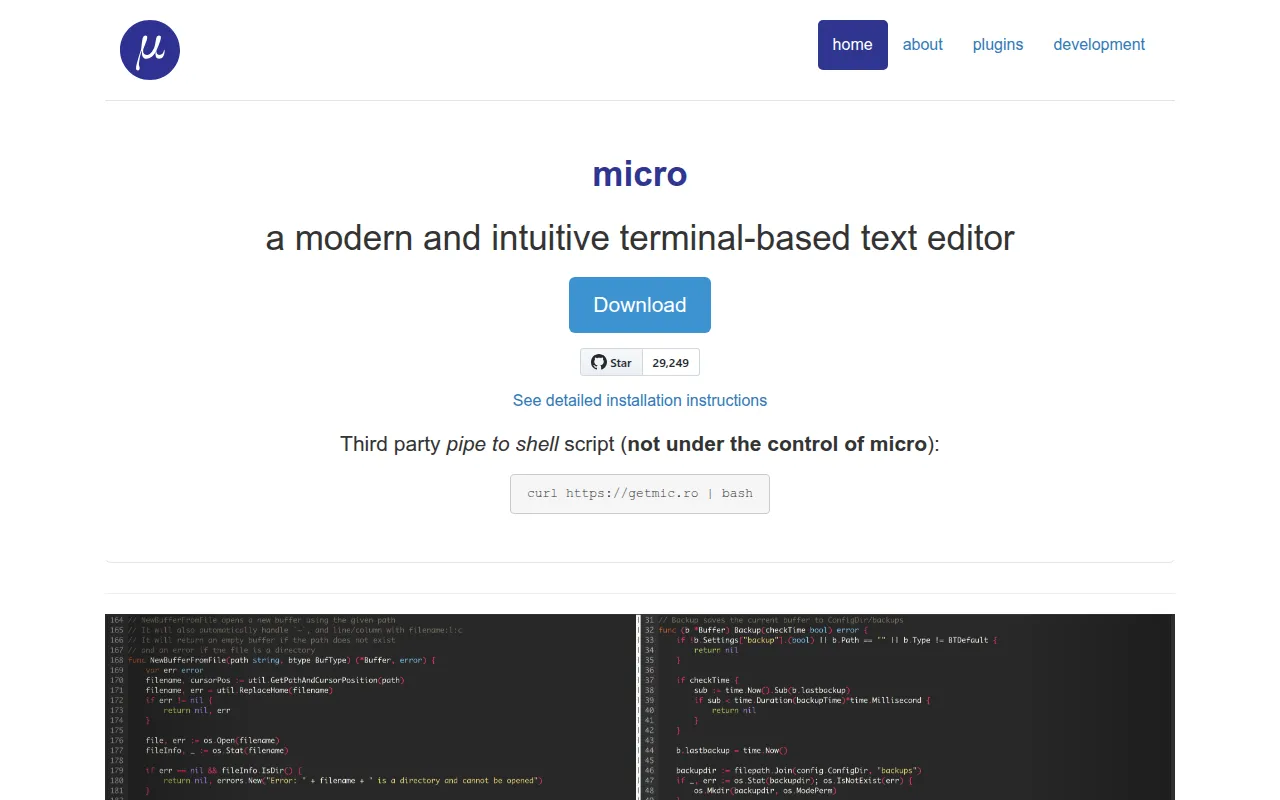
micro is a terminal-based text editor built in Go, aimed at people who want something as easy to pick up as nano but with the conveniences of a modern editor. It ships as a single static binary with no dependencies, so it works well for developers who edit files over SSH, on servers, or in minimal environments where a full IDE isn't practical.
Key features
- Familiar keybindings: Ctrl-s, Ctrl-c, Ctrl-v, Ctrl-z and other standard shortcuts work out of the box, and can be rebound.
- Multiple cursors: edit several locations in a file at once.
- Mouse support: click-drag to select, double-click for word selection, triple-click for line selection.
- Splits and tabs: work with several files or views in one terminal session.
- Plugin system: plugins are written in Lua, with a built-in manager to install, remove, and update them.
- Syntax highlighting: covers over 130 languages, with 16, 256, and true color theme support.
- Persistent undo: undo history survives across editing sessions.
- Built-in diff gutter and linting: shows changes against version control and flags errors as you type.
- System clipboard integration: copy and paste works with the OS clipboard (on Linux, requires xclip/xsel for X11 or wl-clipboard for Wayland).
- Cross-platform: runs anywhere Go and the tcell library are supported, including Windows, macOS, and Linux (excluding Cygwin/Mingw/Plan9).
- Macros and autocompletion: basic productivity features without extra configuration.
Ideal use cases
micro fits developers who spend time in a terminal and want an editor that doesn't require memorizing a new keybinding scheme. It's a solid choice for editing config files, scripts, or code over SSH on a remote server, since it's a single binary with no runtime dependencies to install. It also works well as a lightweight daily driver for anyone who finds nano too limited but doesn't want the overhead of a modal editor like Vim or a full IDE.
It's not the right fit if you need deep language server integration, project-wide refactoring tools, or an extensible ecosystem on the scale of VS Code or Neovim's plugin community. If your workflow depends on Vim-style modal editing or Emacs keybindings as a first-class experience, micro's design (nano-like, not modal) will feel like a mismatch. Users on Cygwin, Mingw, or Plan9 will also hit compatibility issues since tcell (the underlying terminal library) doesn't support those platforms directly.
Installation
The simplest path is a prebuilt binary from the releases page, or a quick-install script:
curl https://getmic.ro | bash
With Eget installed:
eget micro-editor/micro
Package managers are also available:
# macOS
brew install micro

# Linux (snap)
snap install micro --classic

# Arch Linux
pacman -S micro

# Fedora
dnf install micro

# Windows
winget install zyedidia.micro
To build from source, you need Go 1.19 or greater:
git clone https://github.com/micro-editor/micro
cd micro
make build
sudo mv micro /usr/local/bin # optional
Use make install to place the binary in $GOPATH/bin or $GOBIN instead. Once installed, run micro path/to/file.txt to open a file, or just micro for an empty buffer. Check micro -version to confirm what you've installed, and press Ctrl-e then type help inside the editor for built-in documentation.
Frequently asked questions




Similar to Micro